

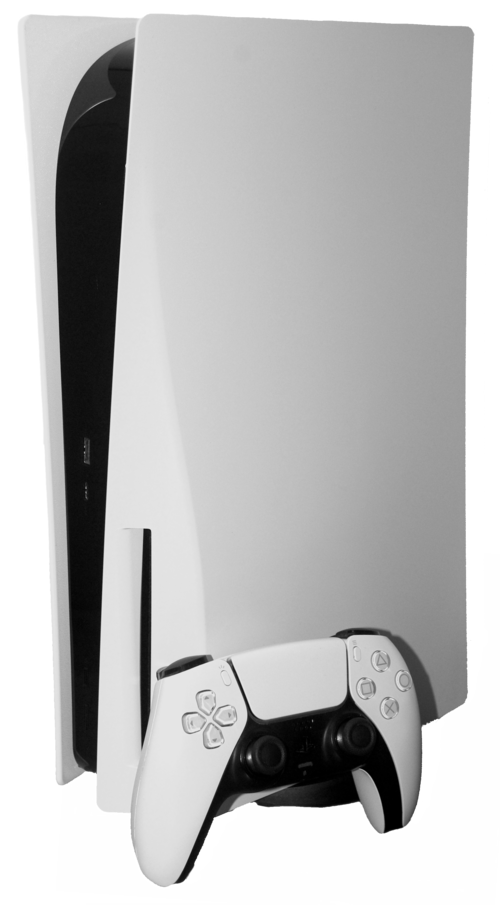
Your PS5 may stop responding because of software errors, overheating, storage issues or connection problems. A frozen console can interrupt your gaming experience without warning. However, most problems have simple fixes you can try first. Learning the possible causes helps you solve freezing issues faster and avoid unnecessary steps. Follow these solutions to get your PS5 working smoothly again with PS5 repair in Calgary.
| Key TakeawaysA PS5 may stop responding because of temporary glitches, heat buildup, damaged game files or limited storage space. Identifying the cause helps you choose the right fix.Simple steps like restarting the console, checking connections and removing external devices often solve minor freezing problems without advanced troubleshooting.Safe Mode tools such as rebuilding the database and updating system software can fix deeper issues when basic solutions fail.Regular maintenance, proper ventilation and software updates help prevent future PS5 freezing and performance problems. |
Main Reasons Why Your PS5 Suddenly Stops Responding
A PS5 freezing issue can happen for many reasons. Sometimes the problem comes from temporary software errors. In other cases, hardware conditions or storage limitations create performance problems.
Before trying advanced solutions, you should understand what may be causing the issue. This helps you avoid unnecessary steps and protects your saved data.
1. Temporary System Software Glitch
A temporary software glitch is one of the most common reasons your PS5 becomes unresponsive. Like any computer system, your console runs thousands of background processes while you play games, download files and use applications. Sometimes these processes fail or conflict with each other. When that happens, the system may freeze for a few moments or stop responding completely.
You may notice signs such as:
- A frozen home screen
- Buttons not working
- Games refusing to load
- Slow menu movement
- Apps crashing unexpectedly
These glitches often appear after long gaming sessions. They can also happen when you switch quickly between multiple games and applications.
Rest Mode can sometimes contribute to temporary issues. The console may struggle when it resumes background tasks after staying in Rest Mode for a long period.
A simple restart usually clears these temporary problems. It refreshes system memory and closes unnecessary background processes.
2. PS5 Overheating
Heat is another major reason why your PS5 may suddenly stop responding. Modern gaming consoles produce significant heat because they handle demanding graphics and processing tasks.
When the internal temperature becomes too high, the PS5 may slow down, freeze or shut itself off to prevent damage.
Several factors can cause overheating:
- Dust blocking ventilation openings
- Poor airflow around the console
- Placing the PS5 inside a closed cabinet
- Long gaming sessions without breaks
You may notice warning signs before the console freezes. The fan might become louder than usual. The system may feel unusually hot. Games may also experience sudden performance drops.
Keeping your PS5 in an open space improves airflow. Avoid placing it against walls or inside tight shelves. Cleaning dust from vents regularly also helps maintain stable temperatures.
A cool console performs better and reduces the chance of unexpected freezing.
3. Corrupted Game Files
Sometimes the PS5 itself works correctly, but a specific game causes freezing problems. This usually happens because the game files become damaged or incomplete.
Corrupted files can appear after:
- Interrupted downloads
- Failed updates
- Sudden power loss during installation
- Storage errors
A common sign is that only one game freezes repeatedly. For example, your PS5 menu may work normally while one particular game crashes every time you open it.
You can often solve this problem by deleting and reinstalling the affected game. Before removing anything, check whether your saved progress is stored safely through cloud backup or local storage.
4. Storage Problems
Your PS5 needs enough storage space to operate smoothly. When your internal SSD becomes almost full, the system may experience slow performance or freezing.
Games today require large amounts of space. Some titles need hundreds of gigabytes after updates and downloadable content.
Storage-related problems can happen because of:
- Very limited free space
- Faulty external drives
- Incorrectly installed expansion SSDs
- Damaged stored data
A full storage drive leaves less room for temporary system operations. This can affect game loading, updates and overall responsiveness.
Check your storage regularly through the PS5 settings menu. Remove games you no longer play or move large files to external storage.
Keeping enough free space allows your console to manage files more efficiently.
5. Outdated System Software
Sony regularly releases PS5 system updates to improve security, performance and compatibility. Running outdated software can sometimes cause freezing.
Older firmware may struggle with newer games or applications. It can also cause issues with network features and system stability.
Common problems linked to outdated software include:
- Game crashes
- Slow menus
- Connection errors
- Unexpected freezing
Check for system updates regularly. Installing updates ensures your console has the latest improvements and bug fixes.
However, make sure your internet connection remains stable during updates. Interruptions can create additional software problems.
6. Controller Connection Problems
Sometimes your PS5 is not frozen. The real issue may be the DualSense controller connection.
A disconnected controller can make it appear like the console is ignoring commands.
Possible causes include:
- Low controller battery
- Bluetooth interference
- Connection errors
- Controller firmware issues
Try connecting the controller directly using a USB cable. This creates a stable connection and helps determine whether the problem comes from the controller.
You can also reset the DualSense controller using the small reset button on the back. After resetting, reconnect it to your PS5.
Checking controller issues first can save you time before attempting deeper fixes.
7. External Devices Causing Conflicts
External accessories can sometimes interfere with PS5 performance. While many devices work correctly, faulty accessories may create system conflicts.
Common examples include:
- External hard drives
- USB hubs
- Capture devices
- Third-party accessories
If your PS5 freezes after connecting a specific device, that accessory may be responsible. Try disconnecting all external devices. Then restart your console and test performance. Reconnect each accessory one at a time. This helps identify which device may be causing the problem.
What To Do When Your PS5 Is Completely Frozen
When your PS5 stops responding completely, start with simple solutions. Avoid immediately disconnecting the power because sudden shutdowns can damage stored data.
Step 1: Wait Briefly
Sometimes the console only appears frozen because it is processing a demanding task. Large games, updates and loading screens can temporarily slow the system. Wait for a few minutes before taking action. If the console starts responding again, the issue may have been temporary.
Avoid pressing buttons repeatedly. Too many inputs can make the system slower while it tries to process commands.
Step 2: Force Restart Your PS5
If your PS5 remains frozen, a force restart may be necessary. Follow these steps:
- Press and hold the power button on the console.
- Keep holding until the system turns off.
- Wait briefly.
- Turn the PS5 back on.
A forced restart clears temporary system problems. However, avoid using this method frequently because repeated sudden shutdowns can affect data integrity.
Step 3: Perform a Power Cycle
A power cycle completely refreshes the console’s electrical state. Follow these steps:
- Turn off your PS5.
- Remove the power cable.
- Wait several minutes.
- Connect the cable again.
- Restart the console.
This method can fix issues that a normal restart cannot solve. It removes temporary system states and allows the console to start fresh.
Advanced Fixes When Basic Solutions Do Not Work
If your PS5 continues freezing after basic troubleshooting, deeper solutions may help.
Start PS5 in Safe Mode
Safe Mode provides special tools for fixing system problems.
To enter Safe Mode:
- Turn off the PS5 completely.
- Press and hold the power button.
- Release after hearing the second beep.
- Connect the controller using a USB cable.
Safe Mode allows access to repair options that are unavailable during normal startup.
Clear Cache and Rebuild Database
Temporary system files can become corrupted over time. Clearing cache and rebuilding the database helps organize system information.
This process can improve:
- Menu responsiveness
- Loading speed
- System stability
Database rebuilding does not remove installed games. It simply reorganizes stored information so the console can access files more efficiently.
Update System Software Through Safe Mode
If normal updates fail, Safe Mode provides another update option.
You can update through:
- Internet connection
- USB storage device
This method can fix software errors that prevent regular updates from completing.
Restore Default Settings
Restoring default settings returns system preferences to their original configuration. This option does not completely erase your games or saved data. It can help when incorrect settings cause performance problems. However, you may need to adjust preferences again after restoration.
Reset PS5 as Last Option
A full reset should only happen when other solutions fail. Resetting your PS5 removes:
- User accounts
- Installed games
- Saved data stored locally
- Personal settings
Before resetting, back up important files whenever possible. A factory reset can solve serious software problems. However, persistent freezing after a reset may indicate a deeper hardware issue that requires professional support.
Conclusion
A frozen PS5 does not always mean serious damage. Many problems come from temporary errors or system conflicts. Simple steps like restarting and checking accessories can fix common issues quickly. Keeping your console updated and clean also prevents future freezing problems. Advanced options like database rebuilding and system resets can help with deeper errors. If your console still struggles after these steps, PS5 repair in Calgary can help bring back smooth gaming performance.